If your WhatsApp chat list is filled with dozens of conversations from family, work groups, and casual contacts, you know how frustrating it can be to scroll through endless threads just to find your most important messages. Chats pin is the most straightforward tool for smart Chat Organization, keeping high-priority conversations fixed at the top of your list. But the official WhatsApp app comes with strict limits that hold back heavy users. Gold WhatsApp unlocks far more flexible, powerful pinning features as one small part of its comprehensive upgrades, and you can explore its full suite of productivity and privacy tweaks in our earlier guide: How to Transform Your Chat Experience with WhatsApp Gold.
In this guide, we’ll walk through how to use pinning effectively in WhatsApp Gold, plus cover how to pin chat on WhatsApp iPhone for official app users.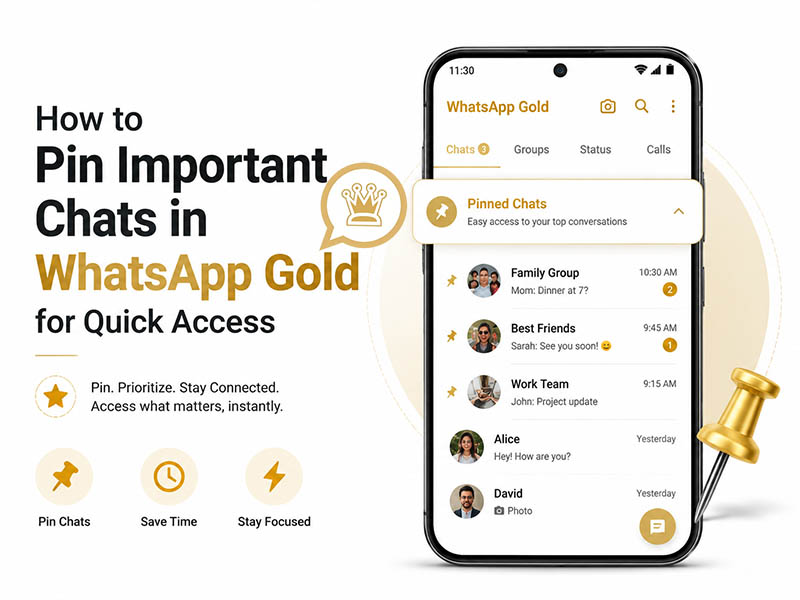
Why Chat Pinning Matters for Smart Chat Organization
Pinning chats is more than a convenience. It’s a core productivity habit for anyone who uses WhatsApp for work, family coordination, or community management. When you pin key conversations, you:
- Cut down on scrolling time and access critical chats in one tap
- Never miss urgent messages from priority contacts buried under new notifications
- Separate high-priority threads from casual, low-urgency conversations
- Build a structured chat list that matches your daily workflow
The problem with the official app is its strict cap: you can only pin a maximum of three chats at once. For anyone juggling multiple work groups, family chats, and important individual contacts, three slots simply aren’t enough. This is where Gold WhatsApp stands out, removing limitations and adding organizational tools the official app has never offered.
Gold WhatsApp vs. Official WhatsApp: Key Pinning Advantages
Before we jump into the steps, let’s break down what makes WhatsApp Gold’s pinning feature better for serious Chat Organization:
- No strict pin limit: Unlike the official app’s 3-chat cap, WhatsApp Gold lets you pin as many conversations as you need — individual chats, groups, and broadcast lists all count.
- Custom pin ordering: You can manually drag and rearrange pinned chats to put your absolute highest-priority threads first, instead of being locked to the order you pinned them.
- Batch pinning: Select multiple chats at once and pin them all in a single tap, perfect for setting up your chat list after a fresh install.
- Categorized pin sections: Some versions support labeled pin groups to keep your pinned section organized instead of one long list.
- Paired with chat labels: Combine pinning with custom chat tags for a full organizational system that works alongside your pinned section.
Step-by-Step Guide to Pin Chats in Gold WhatsApp
Pinning conversations in Gold WhatsApp is simple and intuitive, with extra controls you won’t find in the official app. Follow these steps:
- Open WhatsApp Gold and navigate to your main Chats tab.
- Long-press the chat you want to pin. You can tap additional chats to select multiple threads at once for batch pinning.
- Tap the pin icon in the top action bar. The selected chats will immediately move to the top of your list.
- To reorder your pinned chats: Long-press a pinned conversation, then drag it up or down to place it in your preferred order.
- To unpin a chat: Long-press the pinned thread, then tap the unpin icon in the top menu. The chat will return to its normal position in your list sorted by recent activity.
Pro tip: For temporary high-priority threads, pin it for the duration of the project, then unpin it once work wraps up. This keeps your pinned section focused and clutter-free.
Advanced Chat Organization Tips to Pair With Pinning
Pinning works best when combined with other organizational features in WhatsApp Gold. Here are a few ways to build a fully streamlined chat list:
- Use chat labels: Tag chats by category and pin the most important chat from each category. You can jump straight to label filters from the main chat screen.
- Mute low-urgency pinned groups: Pin a busy work group so you never lose it, but mute notifications to avoid constant distractions. Pinning only controls position; it doesn’t change your notification settings.
- Pin key messages inside chats: For individual conversations, pin important messages to the top of the chat window so you don’t have to scroll back to find them.
- Archive old low-priority chats: Clear out threads you rarely open by archiving them, so your main list only shows active conversations plus your pinned priorities.
How to Pin Chat on WhatsApp iPhone
Gold WhatsApp is built primarily for Android devices. If you use an iPhone and rely on the official WhatsApp app, you can still use basic chat pinning with the standard 3-chat limit. Here’s how:
- Open the official WhatsApp app and go to the Chats tab.
- Find the conversation you want to pin, then swipe right on the chat row.
- Tap the Pin icon that appears on the left side of the chat.
- The chat will move to the top of your list, marked with a small pin badge.
- To unpin: Swipe right on the pinned chat again and tap Unpin.
Keep in mind: On iPhone, you are limited to 3 pinned chats total. If you try to pin a fourth, you will need to unpin one existing pinned chat first. For users who need more pin slots and deeper Chat Organization tools, the Android version of Gold WhatsApp remains the most capable option.
FAQs About Chat Pinning in WhatsApp Gold
- How many chats can I pin in WhatsApp Gold?
There is no strict maximum limit. You can pin dozens of individual chats and groups if needed, far beyond the 3-chat cap of the official app.
- Will my pinned chats sync across devices?
Basic pin status syncs across devices linked to the same WhatsApp account. Custom ordering and category labels created in Gold WhatsApp are saved locally on your device.
- Can I pin both individual chats and group chats?
Yes. You can pin one-on-one conversations, group chats, and broadcast lists. All work with the same pinning controls.
- Does pinning a chat change how notifications work?
No. Pinning only fixes the chat’s position at the top of your list. Your notification, mute, and custom tone settings remain exactly as they were before pinning.
Final Thoughts
Simple chats pin is one of the easiest ways to take control of your messaging workflow, and Gold WhatsApp turns a limited basic feature into a full-powered Chat Organization system. Whether you’re managing work accounts, coordinating large family groups, or just want your favorite contacts one tap away, removing the official 3-chat limit and adding custom ordering makes a noticeable difference in daily use. For iPhone users, the official pin chat on WhatsApp iPhone method works well for light use. But for anyone who wants full control, Gold WhatsApp on Android delivers the most flexible pinning and chat management experience available.