For anyone who’s ever set an alarm just to send a midnight birthday wish, missed cross-timezone client follow-ups, or rushed to send group reminders during busy hours, a native WhatsApp message scheduler is an irreplaceable tool. The official WhatsApp app offers zero built-in timing functions, forcing users to send all texts in real time and risk missing important communications.
WhatsApp Gold solves this pain point with a robust, standalone scheduling system powered by its built-in auto message timer. This feature supports flexible one-off WhatsApp schedule messages for personal milestones and recurring WhatsApp auto message loops for daily, weekly or monthly routines. Unlike generic third-party timing apps that demand extra permissions, all scheduling tools run natively inside WhatsApp Gold, supporting text, photos, videos, documents and broadcast lists.
This tutorial focuses entirely on mastering scheduling functionality for personal users, students, small shop owners and community admins. If you want to build full professional auto-reply workflows with business greeting templates, after-hours away messages and customer keyword automation, check our dedicated guide: Auto-Reply & Scheduling The Professional‘s Guide to WhatsApp Gold. That piece deep-dives into commercial auto-reply systems we will only briefly mention here as complementary tools.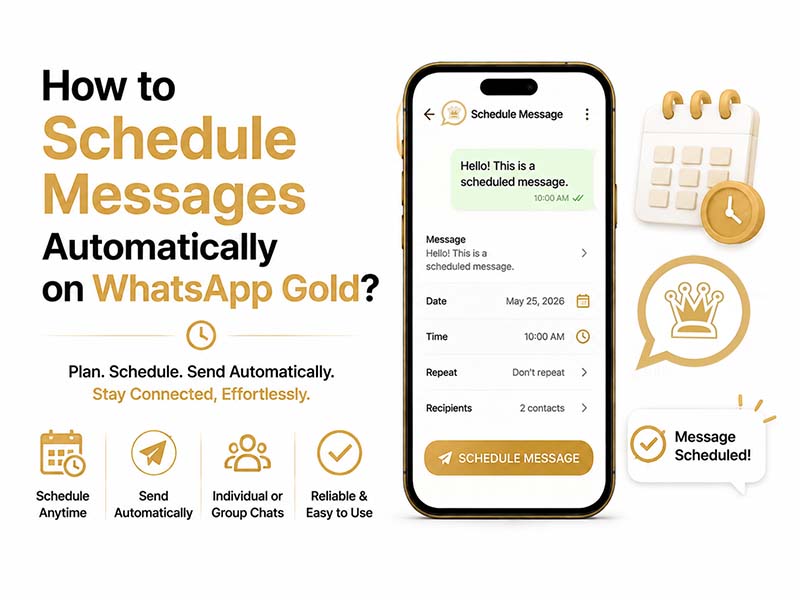
Core Scenarios to Use WhatsApp Message Scheduler
Scheduled messaging fits both daily personal life and lightweight business management. Many of these use cases are rarely covered in professional business guides:
- Personal use: Midnight birthday greetings, anniversary notes, morning good-morning reminders for family, travel plan notifications for distant relatives
- Student & group admin: Study session reminders, assignment deadline alerts, weekly community activity announcements
- Small local businesses: Pre-written order follow-ups, weekly restock notices, appointment reminders for clients in different time zones
- Freelancers: Off-hours draft messages scheduled to deliver within standard working windows to protect work-life balance
Step-by-Step Guide: Set Up One-Time WhatsApp Schedule Messages
Creating single scheduled messages works for individual chats, groups, and broadcast lists, with a straightforward native workflow powered directly by the built-in message scheduler.
- Open the latest version of WhatsApp Gold and navigate to your target chat, group, or broadcast thread.
- Draft your full message, and attach images, videos, PDF files, or other documents as needed. Do not tap the standard send button.
- Long-press the paper-plane send icon for 1 full second to open the extended action menu.
- Select the Schedule message option to launch the date and time picker.
- Choose your preferred delivery date, hour, and minute. The built-in message scheduler supports scheduling up to 30 days in advance.
- Tap Confirm to save your scheduled task. A permanent “Scheduled” banner will appear above the text input box, giving you one-tap access to your full message queue.
Manage Saved Scheduled Tasks
Tap the Scheduled banner anytime to open the full queue, where you can:
- Edit text content or swap attached media
- Reschedule to an earlier or later time
- Delete unneeded scheduled messages entirely before delivery
Set Up Recurring Auto Messages with Auto Message Timer
The standout exclusive feature of WhatsApp Gold’s scheduler is the customizable auto message timer, which creates looping WhatsApp auto message sequences. This function only briefly touched upon in our professional auto-reply guide without detailed setup steps.
- Follow steps 1–4 above to enter the scheduling panel after drafting your content.
- After selecting the initial send date and time, locate the Repeat dropdown menu.
- Pick a repeating frequency: Daily, Weekly, Monthly, or Custom Cycle.
- For custom rules, tick specific weekdays or set a fixed date every month for recurring delivery.
- Save the configuration, and the auto message timer will automatically resend the content on your preset cycle until you manually disable the loop.
Common recurring auto message applications:
- Daily morning check-ins for team groups
- Weekly stock update notifications for regular customers
- Monthly bill payment reminders
- Weekend activity reminders for friend groups
Advanced WhatsApp Auto Message Features Exclusive to WhatsApp Gold
Beyond basic text timing, the message scheduler supports advanced functions absent from the brief overview in our professional business guide:
- Schedule Media Files & Documents
You are not limited to plain text. Attach high-resolution photos, short videos, invoices, menus and location pins before scheduling. All media will send in original quality at the set time. If you regularly share large media attachments with clients, read our separate tutorial How to Share Large Files Online Using WhatsApp Gold to remove official file size limits alongside scheduling.
- Bulk Broadcast Scheduling
Write one uniform update and schedule it to dispatch to your entire broadcast contact list at your chosen peak engagement hour, perfect for weekend promotions or monthly newsletters.
- Combined Scheduler + Keyword Auto Reply
Pair timed messages with lightweight auto-replies for a complete workflow. For example, schedule a daily store opening reminder, while setting an instant auto-response to answer customer keyword queries like “price” or “shipping”. For full customizable business auto-reply templates and industry-specific away messages, refer to our professional automation guide linked earlier.
Practical Tips to Maximize Your WhatsApp Message Scheduler
- Schedule cross-timezone messages during the recipient’s active hours to avoid late-night disturbances.
- Test one scheduled message to a secondary contact first to verify the auto message timer works correctly before sending client-facing content.
- Disable battery optimization for WhatsApp Gold in your phone system settings.Aggressive power-saving modes may pause scheduled delivery tasks.
- Separate personal recurring auto messages and business scheduled broadcasts into different broadcast lists for easier queue management.
- Match scheduled client updates with auto-replies, but avoid over-automation: always add personalized manual follow-ups for high-value customers.
Troubleshooting Common Scheduling Failures
This full troubleshooting section is unique to this scheduling tutorial and not covered in our professional auto-reply guide:
- Scheduled messages delayed or unsent
Ensure background data and background activity permissions are enabled for WhatsApp Gold; the app requires internet access at the scheduled time. If your phone powers off, messages will dispatch automatically once you reboot and reconnect to Wi-Fi or mobile data.
- Repeat auto messages stop looping unexpectedly
Enter the scheduled queue and recheck your auto message timer repeat settings. Major app updates may reset custom recurring rules, requiring you to re-save cycles.
- Schedule message option missing on send menu
Download the newest WhatsApp Gold APK. Outdated versions lack full timer and recurring scheduling support.
- Attached media fails to send on schedule
Confirm media files are stored in local device storage; cloud-only files cannot be attached to scheduled tasks.
Final Thoughts
For a feature that solves countless daily communication pain points, the built-in WhatsApp message scheduler and flexible auto message timer rank among the most underrated tools inside WhatsApp Gold. Whether you draft heartfelt personal greetings weeks in advance, set looping WhatsApp auto message group reminders, or schedule client updates for optimal business hours, native scheduling eliminates rushed messaging and forgotten follow-ups entirely.
Unlike third-party timing apps that demand risky accessibility permissions, all scheduling logic runs securely within WhatsApp Gold without extra software. This guide covers every layer of personal and light commercial timed messaging.