If you’ve ever checked your device storage and been shocked by how much space WhatsApp takes up, you’re not alone. Over months and years of sharing photos, videos, voice notes, and documents, WhatsApp storage can quietly grow to several gigabytes, crowding out other apps and slowing down your phone. The good news is you don’t have to delete your precious conversations to free up space. With WhatsApp Gold, you can clean up unnecessary files while keeping every important chat intact.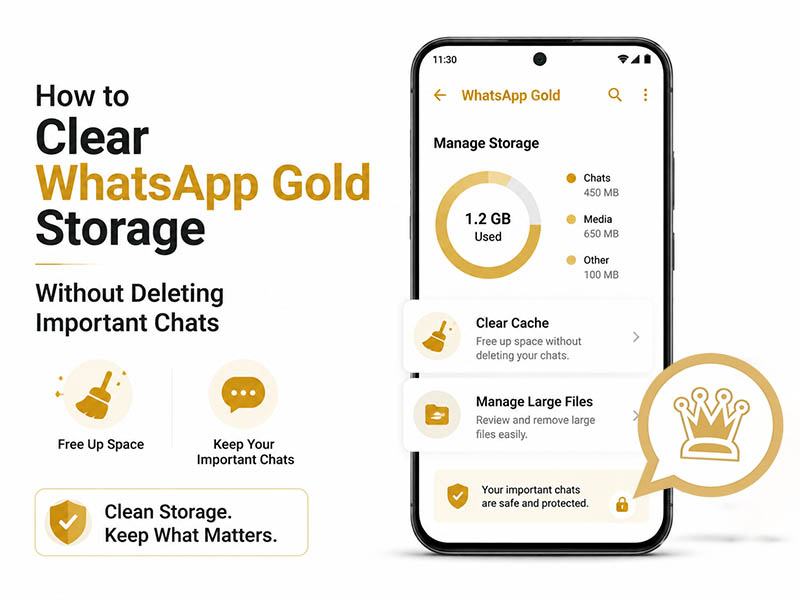
Why WhatsApp Data Storage Piles Up
Before diving into solutions, it helps to understand what’s eating up your space. WhatsApp data storage consists of more than just text messages. In fact, text barely makes a dent. The real culprits are:
- Photos and videos received in group chats and individual conversations
- Forwarded media that gets duplicated across multiple chats
- Voice messages and audio files
- Documents, PDFs, and other shared files
- App cache and temporary data
- Old backup files stored locally on your device
Official WhatsApp offers basic storage management, but WhatsApp Gold comes with enhanced tools that give you finer control over what stays and what goes; all without touching your actual chat history. Many users also enable disappearing messages to auto-expire old content for storage relief, and if you want full control over stopping senders from recalling messages entirely, check our dedicated guide: How to Prevent Messages From Being Deleted on WhatsApp Gold.
Back Up Your Chats First with Google Drive
Before you delete anything, it’s always smart to secure your data. GoogleDrive WhatsApp backups ensure your chats and important media are safely stored in the cloud, even if something goes wrong during cleanup.
Here’s how to back up properly:
- Open WhatsApp Gold and tap the three-dot menu > Settings
- Go to Chats > Chat backup
- Select your Google account and choose a backup frequency
- Decide whether to include videos in the backup
- Tap Back up to start an immediate backup over Wi-Fi
Once your backup is complete, you can clean your local storage with confidence knowing your data is safe in the cloud. This cloud archive also serves as your core safety net if chats get accidentally removed later; we covered the full step-by-step recovery workflow in our previous post: What About Deleted Chats? How to Restore Them on WhatsApp.
Method 1: Use the Built-In Storage Manager
WhatsApp Gold includes a powerful storage management tool that lets you see exactly which files are taking up the most space, so you can delete them selectively without removing entire chats.
Follow these steps:
- Open WhatsApp Gold > Settings > Storage and Data
- Tap Manage Storage to view a breakdown of your WhatsApp storage usage
- You’ll see categories like:
- Files larger than 5 MB
- Media forwarded many times
- Individual chats ranked by storage size
- Tap any category to review files, select what you no longer need, and delete
The best part? Deleting media files this way only removes them from your device storage. The chat thread itself, including all text messages, links, and conversation history, remains completely intact.
Method 2: Move WhatsApp Files to SD Card
For Android users with expandable storage, moving WhatsApp files to SD card is one of the most effective ways to free up internal storage without deleting anything. This is especially useful if you have a large media library you want to keep.
Here’s how to do it safely:
- Open your device’s file manager app
- Navigate to Internal Storage > WhatsApp > Media
- Select the folders you want to move
- Choose Move or Cut from the menu
- Browse to your SD Card and create a WhatsApp Media folder
- Paste the files into the new location
This method keeps all your media accessible while shifting the storage burden to your external SD card. WhatsApp Gold will still be able to access the files as long as the SD card remains in your device.
Method 3: Clear App Cache
If you need to free up space quickly and don’t want to sort through files, clearing the app cache is a safe first step. Cache files are temporary data stored to make the app run faster; they’re not your actual chats or media.
To clear cache on Android:
- Go to your device Settings > Apps > WhatsApp Gold
- Tap Storage
- Tap Clear Cache
This usually frees up a few hundred megabytes instantly and has zero effect on your messages, photos, or settings. You can do this every few weeks as routine maintenance.
What About iPhone Storage Full WhatsApp Situations
If you’re dealing with iPhone storage full WhatsApp issues, the cleanup principles are similar, but with some platform differences. iPhones don’t have SD card slots, so you’ll rely more on the built-in storage manager and cloud backups.
For iPhone users:
- Open WhatsApp > Settings > Storage and Data > Manage Storage
- Review large files and delete what you don’t need
- Disable Save to Camera Roll to prevent media from duplicating in your photo library
- Use iCloud backups instead of local storage for long-term chat preservation
Note that WhatsApp Gold is primarily designed for Android. iPhone users can still follow official WhatsApp storage cleanup tips, but won’t have access to Gold’s advanced management features.
Pro Tips to Prevent Storage Bloat
Cleaning up is important, but preventing unnecessary buildup saves you time in the long run. Try these WhatsApp Gold settings:
- Limit auto-download: Go to Storage and Data > Media Auto-Download and disable automatic downloads for videos and large files on mobile data. This stops files from eating up space without your permission.
- Turn off media visibility: Prevent WhatsApp photos from appearing in your device gallery, which avoids duplicate storage.
- Use disappearing messages: For casual group chats, enable disappearing messages so old content auto-deletes after a set time.
- Regularly review large files: Once a month, spend 5 minutes in the storage manager deleting old videos and forwarded media you no longer need.
Final Thoughts
You don’t have to choose between keeping your chat history and having a fast, clutter-free phone. By using WhatsApp Gold’s enhanced storage tools, backing up to Google Drive, and moving WhatsApp files to SD card, you can reclaim gigabytes of space without losing a single important conversation.
Whether you’re dealing with mild storage bloat or a full storage warning, start with the safest steps; backup first, then clear cache, then selectively remove media. Your chats stay safe, and your device runs smoother.
Ready to take control of your WhatsApp storage? Download the latest version of WhatsApp Gold for access to advanced storage management, SD card support, and all the privacy features you need.