Notifications keep you connected, but poorly tuned alert settings can quickly turn from helpful to overwhelming. The official WhatsApp offers only basic notification controls, leaving you stuck with generic tones, limited customization, and no way to prioritize important chats over noisy group threads. With WhatsApp Gold notification settings, you get granular control over every alert, tone, and vibration pattern. So you only get interrupted when it actually matters.
In this guide, we’ll walk through everything you need to know about WhatsApp Gold custom notifications, from global alert preferences to per-chat WhatsApp Gold notification tones. Whether you want to silence busy groups, assign unique ringtones to priority contacts, or fine-tune how alerts appear on your lock screen, WhatsApp Gold gives you far more flexibility than the standard app.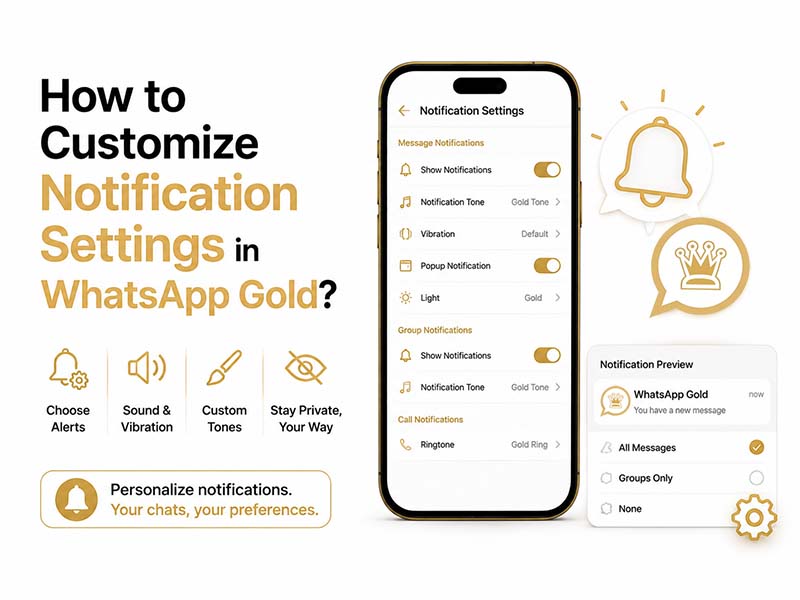
Why Customize Your WhatsApp Gold Notification Settings
Default one-size-fits-all notifications work for casual users, but they fall apart for anyone who uses WhatsApp for both work and personal life. Customizing your alerts helps you:
- Reduce distraction: Mute low-priority groups while staying reachable for important contacts.
- Identify senders instantly: Assign unique tones so you know who’s messaging without picking up your phone.
- Protect privacy: Control how much message content appears on your lock screen.
- Save battery: Cut down on unnecessary wakeups from non-urgent notifications.
- Separate work and life: Set quiet hours for work chats so you don’t get alerts outside office hours.
WhatsApp Gold expands on the official app’s limited options with dozens of extra customization toggles, making it easy to build a notification setup that matches exactly how you use the app.
Part 1: Global WhatsApp Gold Notification Settings
Start with the master notification menu to set your baseline preferences. These settings apply to all chats by default, and you can override them later for individual conversations.
- Open WhatsApp Gold and tap the three-dot menu in the top-right corner.
- Select Settings > Notifications.
- You will see separate sections for message notifications, group notifications, and call notifications.
Here are the most useful global controls to adjust:
1. Message & Group Notifications
- Notification tone: Choose a default sound for all incoming messages and groups.
- Vibration pattern: Pick from preset patterns or create a custom vibration rhythm.
- Popup notification: Control whether messages appear as floating popups over other apps. Choose from “Always show popup,” “Only when screen is on,” “Only when screen is off,” or “No popup.”
- Light color: Select an LED notification color for supported devices.
- Use high priority notifications: Enable to push WhatsApp alerts to the top of your notification shade and show them on the lock screen.
- Lock screen visibility: Choose to show full message content, only sender name, or no details at all for privacy.
2. Call Notifications
- Ringtone: Set a default ringtone for all WhatsApp voice and video calls.
- Vibrate on call: Toggle vibration for incoming calls and select a pattern.
- In-call vibration: Enable subtle vibrations when a call connects or ends.
3. Additional Advanced Controls
WhatsApp Gold adds several options not found in the official app:
- Repeat alerts: Choose how often (if at all) unread notifications re-alert you.
- Quiet hours: Set a time window during which all notifications are silenced automatically.
- Wake screen: Toggle whether notifications turn your screen on.
- Heads-up timeout: Control how long popup notifications stay on screen before disappearing.
Part 2: WhatsApp Gold Custom Notifications for Individual Chats & Groups
Global settings are a great starting point, but the real power comes from WhatsApp Gold custom notifications per conversation. This lets you give priority contacts unique tones, mute noisy groups, and set different rules for work chats versus personal chats.
1. How to Set Custom Notifications for a Chat
- Open any individual chat or group conversation in WhatsApp Gold.
- Tap the three-dot menu in the top-right corner of the chat window.
- Select Custom notifications.
- Check the box labeled Use custom notifications to unlock per-chat controls.
- Customize any of the following for this specific chat:
- Notification tone
- Vibration pattern
- Popup behavior
- LED light color
- Importance level
- Lock screen visibility
- Tap Save to apply the changes.
2. Smart Ways to Use Custom Notifications
- Priority contacts: Assign a distinct, loud tone to family, close friends, or key work contacts so you never miss their messages.
- Busy groups: Keep group notifications enabled but set them to silent vibration only, so you know there’s activity without constant pings.
- Work chats: Use a professional, subtle tone for work conversations and enable quiet hours outside business hours.
- Spam/rare contacts: Set low-priority notifications with no popup and no vibration for contacts you rarely hear from.
Part 3: WhatsApp Gold Notification Tones – How to Add & Customize
One of the most popular features is the ability to use custom audio files as WhatsApp Gold notification tones. Unlike the official app, which limits you to a small built-in list, WhatsApp Gold lets you use any MP3, OGG, or M4A file on your device as a message tone, group alert, or ringtone.
1. How to Set a Custom Notification Tone
- Open WhatsApp Gold notification settings.
- Tap Notification tone under Message notifications or Group notifications.
- Instead of selecting from the default list, tap Add ringtone or Choose from files.
- Browse your device storage and select the audio file you want to use.
- Preview the tone, then tap OK to set it as your default.
To set a custom tone for one specific chat, follow the custom notifications steps above and tap the tone selector inside that chat’s settings.
2. Pro Tips for Notification Tones
- Keep it short: For message alerts, use clips under 3 seconds to avoid annoyance.
- Differentiate clearly: Pick distinctly different tones for messages, groups, and calls so you know what kind of alert it is without looking.
- Use SD card files: WhatsApp Gold can read audio files from your SD card, so you don’t have to store them on internal storage.
- Backup your tones: If you switch devices, save your custom tone files so you can quickly restore your setup.
Part 4: Advanced Notification Features Exclusive to WhatsApp Gold
Beyond basic tones and per-chat settings, WhatsApp Gold includes several premium notification features you won’t find in the official app:
- Smart Mute with Exceptions
Mute all notifications except for selected priority contacts. This is perfect for focus time, meetings, or nighttime.
Find it in: Settings > Notifications > Smart Mute
- Scheduled Do Not Disturb
Set automatic quiet hours on specific days of the week. For example, mute work chats every weekday after 7 PM and on weekends.
Find it in: Settings > Notifications > Scheduled DND
- Notification Reminder for Unread Chats
Choose to get periodic reminders about unread messages from specific chats, so you never forget to reply to important messages.
Find it in: Chat settings > Custom notifications > Reminder
- In-App Notification Badge Customization
Control how unread counts appear on your app icon, including badge style, color, and whether to count muted chats.
Final Thoughts
Default WhatsApp notifications are designed for the average user, but if you want full control over when, how, and why your phone alerts you, WhatsApp Gold notification settings deliver a level of customization the official app can’t match. From global alert preferences to per-chat WhatsApp Gold custom notifications and personalized WhatsApp Gold notification tones, you can build a setup that keeps you connected without the constant distraction.
Take five minutes to walk through these settings, assign a few key custom tones, and set up quiet hours for your busiest groups. You’ll immediately notice less notification noise, and far fewer missed messages from the people who matter most.