Sharing photos is one of the most common ways we connect on WhatsApp. But anyone who has sent a WhatsApp Image knows the frustration of heavy compression, blurry details, and strict file limits that ruin the original quality. Gold WhatsApp solves these pain points with a full set of customizable media settings, putting you in control of how photos are sent, saved, and stored. Whether you’re sharing personal memories with family or using business WhatsApp Gold to send product photos to clients, adjusting these settings will instantly upgrade your photo sharing experience. In this guide, we’ll walk through every key media setting, what it does, and how to configure it for the best results.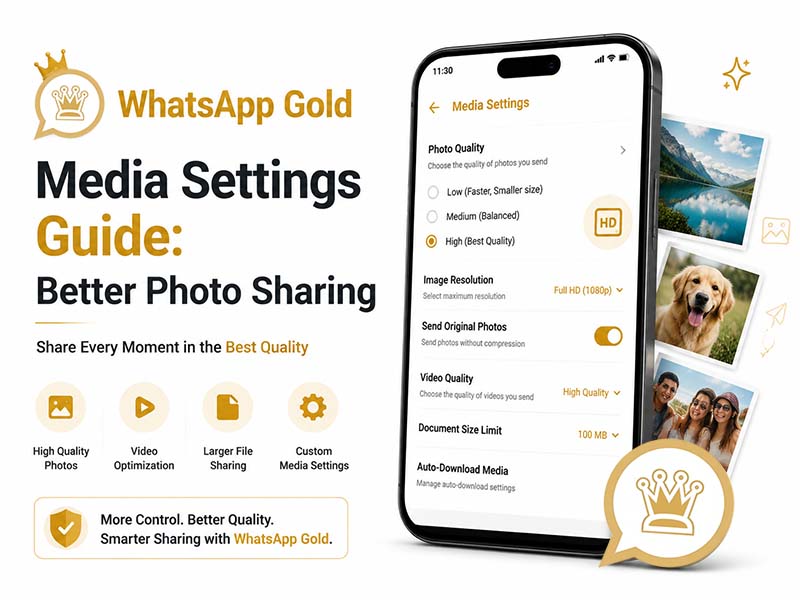
Why Default WhatsApp Image Settings Fall Short
Before diving into the tweaks, it’s helpful to understand why the official app often delivers underwhelming photo quality. The standard WhatsApp is built to save mobile data and storage for the average user, so it automatically compresses every image you send. It also caps the number of photos you can share at once, offers minimal control over auto-downloads, and provides no way to organize saved images by chat or category.
For casual snapshots, this works fine. But for high-quality photos, product images, or important documents saved as pictures, the quality loss is noticeable. Gold WhatsApp removes these default restrictions and adds granular controls, so you can balance quality, data usage, and storage to fit your needs.
Essential Gold WhatsApp Media Settings to Tweak
All of the settings below are found in the Storage and Data menu within WhatsApp Gold settings. Take a few minutes to adjust them, and you’ll notice an immediate improvement in every WhatsApp Image you send and receive.
1. Enable Original Quality Image Sending
This is the single most impactful setting for anyone who cares about photo quality. When enabled, Gold WhatsApp sends your photos in their original resolution, with no forced compression or downscaling. If you want an in-depth breakdown of this core capability, check our dedicated tutorial: How to Bypass WhatsApp’s Image Compression with Gold.
How to set it up:
- Open WhatsAppGold and tap the three-dot menu > Settings
- Go to Storage and Data > Media Upload Quality
- Select Original Quality for photos sent over Wi-Fi, and choose your preferred quality for mobile data
- Save your changes
With this enabled, every WhatsApp Image you send will retain its full resolution, sharpness, and detail.
2. Customize Auto-Download Rules for Images
Auto-download is convenient, but it can quickly fill up your storage with unwanted photos from busy group chats. Gold WhatsApp lets you set separate rules for individual chats, groups, and roaming data, so you control which images save automatically.
How to set it up:
- Go to Settings > Storage and Data > Media Auto-Download
- For When Using Mobile Data, uncheck photos if you want to save data
- For When Connected to Wi-Fi, keep photos enabled for fast, automatic saves
- Optionally, enable selective auto-download for specific important contacts
This way, you never waste data or storage on random forwarded images, but photos from priority chats save instantly.
3. Unlock Bulk Photo Sharing Limits
The official WhatsApp caps photo sharing at 30 images per message.This limitation is frustrating when you want to share an entire photo album or product catalog. Gold WhatsApp removes this cap entirely, so you can send dozens of photos in a single batch.
How to use it:
- Open any chat and tap the attachment icon > Gallery
- Select as many photos as you want to share
- Add captions if needed, then tap send
- All images will be delivered in one batch, with your chosen quality setting applied
For business WhatsApp Gold users, this is especially valuable. You can send an entire product line or project gallery to a client in one message, instead of splitting it into multiple separate sends.
4. Organize WhatsApp Image Storage Paths
By default, all WhatsApp images save into one mixed folder, making it hard to find specific photos later. WhatsApp Gold lets you customize storage paths, so images from different chats or categories save into separate folders.
How to set it up:
- Go to Settings > Chats > Media Storage Settings
- Enable Separate Folders by Chat to automatically organize images by conversation
- Optionally, set a custom save location on your SD card for media files
This simple change makes it far easier to find, back up, or delete specific sets of images without sorting through thousands of mixed files.
5. Add Privacy Controls for Shared Photos
Beyond quality and storage, WhatsApp Gold adds privacy settings that give you more control over how your images are used by recipients. If you are concerned about the security of sensitive personal or commercial visual files shared via the modded app, we have covered all risk and protection points in our earlier guide: Is WhatsApp Gold Safe for Private Photos and Videos.
You can:
- Enable Anti-Forward for specific photos to prevent recipients from forwarding your images to others
- Disable Save to Gallery for sensitive photos, so they don’t appear in the recipient’s phone gallery
- Set disappearing media that auto-deletes after the recipient views it once
These controls are especially useful for business WhatsApp Gold users sharing confidential product photos or private client materials.
How Business WhatsApp Gold Elevates Professional Photo Sharing
For small business owners, retailers, and freelancers, photo quality directly impacts how customers perceive your brand. A blurry, compressed product photo can make even high-quality items look cheap. With business WhatsApp Gold, you can:
- Send high-resolution product photos with zero compression, so customers see accurate colors and details
- Share full catalog batches in a single message, creating a smoother shopping experience
- Organize client photos by chat folder, so you can quickly reference past orders and requests
- Disable forwarding for exclusive product previews or custom design drafts
- Auto-save product images sent by customers into labeled folders for easy order tracking
When combined with catalog features and quick reply templates, these media settings turn WhatsApp from a basic chat app into a full-featured customer communication tool.
Pro Tips for a Smoother Photo Sharing Experience
- Use Wi-Fi for original quality uploads: Original resolution photos are larger, so send them over Wi-Fi to avoid using up your mobile data.
- Clean up duplicate images regularly: Use Gold WhatsApp’s built-in storage manager to find and delete duplicate forwarded photos, freeing up space without losing important images.
- Back up important photos separately: For irreplaceable photos, save them to your cloud storage or computer in addition to keeping them in WhatsApp.
- Match quality to the recipient: For quick casual snaps, use standard quality to save data; for important or professional photos, switch to original quality.
Get Started with a Trusted WhatsApp Gold APK Download
To access all of these advanced media settings, you need the latest, official version of the app. Always complete your WhatsApp Gold APK download from a verified, trusted source to ensure you get the full feature set, regular updates, and a clean, secure file.
Once installed, you can adjust all the settings above in just a few minutes, and immediately notice the difference every time you send or receive a WhatsApp Image.
Final Thoughts
You shouldn’t have to settle for blurry, compressed photos just to share them on WhatsApp. With WhatsApp Gold, you get full control over image quality, auto-downloads, storage organization, and privacy. For personal users, that means sharper memories and better-organized galleries. For business WhatsApp Gold users, that means more professional customer communications and smoother workflow.
If you’re ready to stop putting up with default compression and limited controls, complete your WhatsApp Gold APK download from our site today, and follow this guide to configure your media settings for the best possible photo sharing experience.